Quickstart
Page not available in that version
The current page Quickstart doesn't exist in version 1.6.2 of the documentation for this product.
Overview
This guide takes three freshly installed Enterprise Linux 9 machines and turns them into a production CDN Manager cluster, ending with you signed in to the web GUI. Follow it from top to bottom. Each step shows the commands to run and the output to expect, and links to a page with the details and the alternatives.
The whole installation is driven by one command, deploy, which ships on the installation ISO. You run it on the first machine, and it configures every machine over SSH: the host firewall and network, the Kubernetes cluster, and the CDN Manager itself. You do not run anything by hand on the other machines.
Estimated time: about 30 minutes, of which deploy itself takes 15 to 20.
The example cluster
The commands below use this example. Replace the names and addresses with your own as you go.
| Machine | Role | Public address (eth0) | Backplane address (eth1) |
|---|---|---|---|
manager-1 | server | 192.0.2.11 | 10.10.0.11 |
manager-2 | server | 192.0.2.12 | 10.10.0.12 |
manager-3 | server | 192.0.2.13 | 10.10.0.13 |
- Manager hostname:
manager.example.com, the name users and CDN Directors use to reach the manager. Its DNS record points at the public address of one or more of the machines. - Backplane network:
10.10.0.0/24, the network the machines use to talk to each other. A backplane is optional, but recommended. When you use one, all node-to-node (east-west) traffic stays on it, and every machine must be reachable on it. It should be a separate network from the public one. It does not have to be reserved for the cluster, so other hosts, such as your CDN Directors, may also be on it. - CDN Director:
director-1at 192.0.2.201. It runs on its own machine, outside this cluster.
Single network? A dedicated backplane is recommended, but not required. If each machine has only one network interface, follow the guide as written and leave
backplane_networkempty in Step 6. See the Networking Guide for both layouts.
Before You Begin
Make sure you have:
- Three machines that meet the System Requirements, each with a minimal install of Red Hat Enterprise Linux 9.4 or later, or a compatible rebuild such as Oracle Linux, AlmaLinux or Rocky Linux. Keep the defaults: firewalld and NetworkManager running, and any SELinux mode.
- Final hostnames on every machine, each one unique. A machine cannot be renamed after it joins the cluster.
- A default route on every machine, on the public interface. It does not need to lead to the internet: on an isolated network, use your site’s router or any gateway address on that subnet.
- Root access to every machine, by password or key, to set up SSH in Step 1.
- Package repositories: every machine must be able to install packages with
dnffrom the operating system’s repositories.deployinstalls a few packages, such asansible-coreon the first machine and the storage tools on all of them. Without internet access, see Air-Gapped Installation. - A DNS name for the manager, such as
manager.example.com. - The installation ISO,
esb3027-cdn-manager-1.8.0.iso, from the AgileTV customer portal. - A TLS certificate for the manager hostname, issued by a certificate authority your users trust, with its private key. You can start without one; see Step 7.
- MaxMind GeoIP databases from your own MaxMind subscription: City, ASN and Anonymous IP. You can start without them; see Step 8.
Run every command in this guide as root on manager-1, unless a step says otherwise.
Step 1: Set Up SSH Keys
deploy connects from manager-1 to every machine as root, manager-1 itself included, and needs to log in without a password prompt.
Create a key on manager-1:
ssh-keygen -t ed25519 -N '' -C "acd-deploy@$(hostname)" -f /root/.ssh/id_ed25519
Expected output:
Generating public/private ed25519 key pair.
Your identification has been saved in /root/.ssh/id_ed25519
Your public key has been saved in /root/.ssh/id_ed25519.pub
The key fingerprint is:
SHA256:igFCBNWbW74iWVSPZdMrGhtpKXiPQedvUZEGPmzppsI acd-deploy@manager-1
...
Copy it to all three machines. Enter each machine’s root password when prompted:
for ip in 192.0.2.11 192.0.2.12 192.0.2.13; do
    ssh-copy-id -o StrictHostKeyChecking=accept-new -i /root/.ssh/id_ed25519.pub root@$ip
done
Expected output, once per machine:
/usr/bin/ssh-copy-id: INFO: Source of key(s) to be installed: "/root/.ssh/id_ed25519.pub"
/usr/bin/ssh-copy-id: INFO: attempting to log in with the new key(s), to filter out any that are already installed
/usr/bin/ssh-copy-id: INFO: 1 key(s) remain to be installed -- if you are prompted now it is to install the new keys
root@192.0.2.11's password:

Number of key(s) added: 1
Check that each login now works without a prompt:
for ip in 192.0.2.11 192.0.2.12 192.0.2.13; do
    ssh -o BatchMode=yes root@$ip hostname
done
Expected output:
manager-1
manager-2
manager-3
If a machine asks for a password or prints Permission denied, fix that before going on. Otherwise deploy stops with UNREACHABLE.
Step 2: Check the Machines
Confirm that each machine runs a supported release, has its addresses and default route, and runs firewalld and NetworkManager:
for ip in 192.0.2.11 192.0.2.12 192.0.2.13; do
    echo "===== $ip"
    ssh root@$ip 'cat /etc/redhat-release; ip -br -4 addr; ip route show default; systemctl is-active firewalld NetworkManager'
done
Expected output, for each machine:
===== 192.0.2.11
Red Hat Enterprise Linux release 9.4 (Plow)
lo               UNKNOWN        127.0.0.1/8
eth0             UP             192.0.2.11/24
eth1             UP             10.10.0.11/24
default via 192.0.2.1 dev eth0 proto static
active
active
Check for:
- A release of 9.4 or later.
- The default route on the public interface (
eth0). - The backplane address on another interface (
eth1), inside the backplane network. activetwice: firewalld, then NetworkManager.
deploy checks all of this again before it changes anything, along with processor cores, memory and kernel modules, and stops with a message naming the problem.
Step 3: Mount the Installation ISO
Copy the ISO to manager-1, for example with scp from your workstation:
scp esb3027-cdn-manager-1.8.0.iso root@192.0.2.11:/root/
Then, on manager-1, mount it at /mnt/esb3027:
mkdir -p /mnt/esb3027
mount -o loop,ro /root/esb3027-cdn-manager-1.8.0.iso /mnt/esb3027
ls -1 /mnt/esb3027
Expected output:
ansible
BUILD_ARCH
charts
common.sh
deploy
install
join-agent
join-server
k3s_installer.sh
load-maxmind-databases
openapi.yaml
Packages
rootfs.tar
values-lab.yaml
values-production.yaml
values.yaml
VERSION.txt
The ISO is needed only on manager-1. deploy copies what the other machines need.
Important: Keep the ISO mounted at
/mnt/esb3027whenever you rundeploy, now and later. The deployment’s configuration reads its application settings from the ISO, anddeploystops if the ISO is not mounted. The mount does not survive a reboot, so mount it again before the next run.
Step 4: Initialize the Deployment
Initialize manager-1 with the production preset:
/mnt/esb3027/deploy init prod
This installs ansible-core from the operating system’s repositories, installs the Ansible collections bundled on the ISO, and creates the configuration folder /etc/acd/deploy. Expected output (the package list is shortened here):
###############################################################
            ESB3027 AgileTV CDN Manager -- Deployer
 Version: 1.8.0
###############################################################

Installing ansible-core from the OS repositories ...
Dependencies resolved.
================================================================================
 Package               Arch    Version                 Repository          Size
================================================================================
Installing:
 ansible-core          x86_64  1:2.14.18-3.el9         appstream          3.9 M
...
Complete!
Installing bundled Ansible collections ...

Initialization complete, using the production preset. Next:
  1. Edit /etc/acd/deploy/inventory.ini        - your node addresses and roles.
  2. Edit /etc/acd/deploy/group_vars/all.yaml  - at minimum, manager_hostnames.
  3. (Optional) drop a TLS certificate + key into /etc/acd/deploy/certs/
     and the three MaxMind .mmdb files into /etc/acd/deploy/maxmind/.
  4. (Optional) change application settings in /etc/acd/deploy/values.override.yaml.
  5. Run: /mnt/esb3027/deploy

See /etc/acd/deploy/README.md for the full input contract.

WARNING: deploy connects over SSH from this node to every node in
inventory.ini, this node included, as root unless ansible_user says
otherwise. Make sure SSH keys are set up so each of those logins works
without a password prompt before running deploy.
The next four steps follow that list. Everything you configure lives in /etc/acd/deploy:
/etc/acd/deploy/
├── inventory.ini          # Step 5: your machines and their roles
├── group_vars/all.yaml    # Step 6: your site settings
├── certs/                 # Step 7: your TLS certificate and key
├── maxmind/               # Step 8: your MaxMind databases
├── values.override.yaml   # optional application settings, empty to start
├── preset.yaml            # link to the production preset on the ISO; do not edit
└── README.md              # the full reference for this folder
For other options, such as the lab preset, see the deploy reference.
Step 5: List Your Machines
Open /etc/acd/deploy/inventory.ini in an editor. It is a commented example with three sections. Edit the machine lines so that your three machines are listed under [server], with the address deploy reaches each one on over SSH, and the other two sections are empty:
[server]
manager-1 ansible_host=192.0.2.11
manager-2 ansible_host=192.0.2.12
manager-3 ansible_host=192.0.2.13

[agent]

[director]
[server]: the first server listed must be the machine you rundeployon, heremanager-1. The number of servers must be odd: one for a lab, three for production.[agent]: lists any additional machines beyond the three servers. It may be left empty, as here.[director]: leave it empty. Adding machines under[director]is not currently supported. CDN Directors run on their own machines and are listed in the next step.
To add agent machines later, or to set per-machine options, see Inventory.
Step 6: Enter Your Site Settings
Open /etc/acd/deploy/group_vars/all.yaml. Every setting in it is explained in its comments and already holds a working default. For this cluster, change three lines:
manager_hostnames: [manager.example.com]
external_directors: [{name: director-1, address: 192.0.2.201}]
backplane_network: "10.10.0.0/24"
| Setting | What to enter |
|---|---|
manager_hostnames | Every hostname users and CDN Directors use to reach the manager. The first one is the main hostname: it must match your TLS certificate, and it is the only name you can sign in under. |
external_directors | Each CDN Director, with a name of your choosing and its IPv4 address (not its hostname). Leave the list empty, [], if you have none yet. |
backplane_network | The address range of the backplane network, which should be separate from the public network. Leave it empty, "", if you have no backplane. |
To review your changes, print the settings without their comments:
grep -Ev '^\s*(#|$)' /etc/acd/deploy/group_vars/all.yaml
Expected output:
---
manager_hostnames: [manager.example.com]
manage_firewall: true
manage_routes: true
external_directors: [{name: director-1, address: 192.0.2.201}]
backplane_network: "10.10.0.0/24"
cluster_pod_cidr: 10.42.0.0/16
cluster_svc_cidr: 10.43.0.0/16
firewall_cluster_zone: acd-cluster
firewall_public_policy: acd-public
tls_cert_file: ""
tls_key_file: ""
maxmind_city_db: ""
maxmind_asn_db: ""
maxmind_anon_db: ""
backup_dir: /var/lib/acd/backups
Important:
backplane_network,cluster_pod_cidr,cluster_svc_cidr,firewall_cluster_zoneandfirewall_public_policyare locked at the first installation. Changing one later means reinstalling the cluster, which starts empty: the PostgreSQL databases, Kafka’s messages and everything else stored in the cluster are lost unless you have backed them up. Check them now.
With manage_firewall: true, the default, deploy configures firewalld on every machine for you. The backplane interface is trusted for all traffic, and the public interface stays in firewalld’s public zone with only the ports the manager needs opened. Before you run deploy, make sure the public zone allows everything else you need on the public interface, SSH included: firewall-cmd --zone=public --list-all on each machine should list ssh under services.
For every setting, see Site Settings.
Step 7: Add Your TLS Certificate
Copy your certificate and its private key into /etc/acd/deploy/certs/:
cp manager-fullchain.crt manager.key /etc/acd/deploy/certs/
chmod 600 /etc/acd/deploy/certs/manager.key
- Both files must be PEM (text beginning with
-----BEGIN), in two separate files. The file names do not matter. - Use the full chain: your certificate followed by any intermediate certificates.
- The key must not have a passphrase.
- The certificate must cover the first entry of
manager_hostnames, directly or by a wildcard.
Check what the certificate covers:
openssl x509 -in /etc/acd/deploy/certs/manager-fullchain.crt -noout -subject -issuer -dates -ext subjectAltName
Expected output:
subject=CN = manager.example.com
issuer=CN = Example Issuing CA
notBefore=Oct 14 18:57:23 2026 GMT
notAfter=Jan 16 18:57:23 2027 GMT
X509v3 Subject Alternative Name:
    DNS:manager.example.com
deploy checks the certificate and key before it changes anything.
No certificate yet? Leave the folder empty.
deploythen serves a temporary self-signed certificate, which browsers warn about. Add the real one later and rundeployagain to replace it. For production, use a certificate from a certificate authority your users already trust. See TLS Certificates.
Step 8: Add Your MaxMind Databases
The manager uses MaxMind GeoIP databases for geographic routing. Copy the three .mmdb files from your MaxMind subscription into /etc/acd/deploy/maxmind/:
cp GeoIP2-City.mmdb GeoLite2-ASN.mmdb GeoIP2-Anonymous-IP.mmdb /etc/acd/deploy/maxmind/
ls -l /etc/acd/deploy/maxmind/
Expected output:
total 126236
-rw-r--r--. 1 root root      4382 Oct 14 18:57 GeoIP2-Anonymous-IP.mmdb
-rw-r--r--. 1 root root 121642973 Oct 14 18:57 GeoIP2-City.mmdb
-rw-r--r--. 1 root root   7609502 Oct 14 18:57 GeoLite2-ASN.mmdb
-rw-r--r--. 1 root root       400 Oct 14 18:57 README.txt
Files are matched by name: one containing City, one ASN and one Anon. Provide all three or none. With none, geographic routing is off until you add them and run deploy again. See MaxMind GeoIP Databases.
Step 9: Run the Deployment
Start the installation:
/mnt/esb3027/deploy
deploy works through fixed stages, and stops at the first problem with a message naming it:
- Gather inputs: reads every machine and works out the settings. Changes nothing.
- Preflight: checks the machines and your settings. Changes nothing.
- Backup: archives each machine’s configuration before any change.
- Host network: configures the firewall zones, routing rules and kernel network settings on each machine, then checks the result.
- Cluster: installs Kubernetes (k3s) on
manager-1, then joins the other servers one at a time. - Platform: installs the CDN Manager, loads the MaxMind databases, and runs a final health check.
The output is long. Shortened, it looks like this:
###############################################################
            ESB3027 AgileTV CDN Manager -- Deployer
 Version: 1.8.0
###############################################################

Running the operator playbook (log: /etc/acd/deploy/deploy.log) ...
[WARNING]: Collection ansible.posix does not support Ansible version 2.14.18

PLAY [Gather inputs - host probes, host network plans and k3s] *****************

TASK [Check that the node can be reached] **************************************
ok: [manager-1]
ok: [manager-3]
ok: [manager-2]
...
PLAY [Join or upgrade the other servers, one at a time] ************************
...
TASK [cluster : Join or upgrade this node with join-server] ********************
changed: [manager-2]
FAILED - RETRYING: [manager-2]: Wait for this server to become Ready (20 retries left).
FAILED - RETRYING: [manager-2]: Wait for this server to become Ready (19 retries left).
...
TASK [cluster : Wait for this server to become Ready] **************************
ok: [manager-2]
...
TASK [acceptance : Report the go verdict] **************************************
ok: [manager-1] => {
    "msg": "Deployment gate PASSED for cdn-platform. GeoIP is serving."
}
...
PLAY RECAP *********************************************************************
manager-1                  : ok=185  changed=28   unreachable=0    failed=0    skipped=106  rescued=0    ignored=0
manager-2                  : ok=116  changed=16   unreachable=0    failed=0    skipped=48   rescued=0    ignored=0
manager-3                  : ok=116  changed=16   unreachable=0    failed=0    skipped=48   rescued=0    ignored=0
The installation succeeded when you see Deployment gate PASSED and the recap shows unreachable=0 and failed=0 for every machine. Your other counts may differ.
Some lines look alarming but are expected:
FAILED - RETRYING: ... Wait for this server to become Ready:deploypolls each joining server until it is ready. Ten or more of these per server is normal.[WARNING]: Collection ansible.posix does not support Ansible version ...: harmless.[WARNING]: Could not match supplied host pattern, ignoring: acd_host_network_verify: harmless.
The whole run is also appended to /etc/acd/deploy/deploy.log.
If deploy stops, its message starts with a code in square brackets, such as [ACD-TLS-HOSTNAME]. Look the code up in Installation Troubleshooting, fix the cause, and run deploy again. Running it again is safe: it picks up where the cluster is and re-applies your settings.
Step 10: Verify the Cluster
Check that all three machines are Ready:
kubectl get nodes -o wide
Expected output (the columns right of EXTERNAL-IP are trimmed here):
NAME        STATUS   ROLES                AGE     VERSION        INTERNAL-IP   EXTERNAL-IP
manager-1   Ready    control-plane,etcd   12m     v1.35.0+k3s1   10.10.0.11    192.0.2.11
manager-2   Ready    control-plane,etcd   8m47s   v1.35.0+k3s1   10.10.0.12    192.0.2.12
manager-3   Ready    control-plane,etcd   6m3s    v1.35.0+k3s1   10.10.0.13    192.0.2.13
INTERNAL-IP is each machine’s backplane address, and EXTERNAL-IP its public address.
Check every component of the CDN Manager:
acd-admin status
Every target should show ok under HEALTH, and every node Ready. See acd-admin status for what each column means.
Check that the manager answers on its hostname:
curl https://manager.example.com/api/v1/health/ready; echo
Expected output:
{"status":"Ok"}
Note: If your certificate was issued by a private certificate authority that this machine does not trust, add
--cacert <your CA certificate>to thecurlcommands. If you started without a certificate, use-kinstead.
If you listed a CDN Director in external_directors, check that the manager reaches it. The trailing slash is required:
curl -s -o /dev/null -w '%{http_code}\n' https://manager.example.com/confd/director-1/config/__active/
Expected output:
200
200 shows that the manager reached the Director and read its configuration. A 5xx status comes from the manager’s gateway when it cannot reach the Director: check the Director’s address in external_directors, that the Director is running, and that the network between them allows the connection. Connecting the Director to the manager is covered in the CDN Director documentation.
Important: Your CDN Directors reach Kafka on ports 9092/tcp and 30000-30003/tcp on every machine (one more port per broker if you run more than the default three). The host firewall does not filter these ports, so they are open to any network that can reach the machines. Restrict them to your CDN Directors on your network’s own firewall. See the Networking Guide.
Step 11: Back Up the Zitadel Master Key
Zitadel, the manager’s identity service, encrypts its stored credentials with a master key. If the key is lost, it cannot be recovered. Print it:
kubectl get secret zitadel-masterkey --namespace default -o jsonpath="{.data.masterkey}" | base64 --decode; echo
Store the output somewhere safe, away from the cluster.
Step 12: Sign In to the GUI
In a browser, open https://manager.example.com/gui/:

Sign in with the default administrator account:
- Username:
admin@zitadel.manager.example.com, that is,admin@zitadel.followed by your main manager hostname. - Password:
Password1!
Note: Use the manager hostname you configured, not a machine’s IP address or another name: signing in only works under the main manager hostname. The GUI also needs the full login name above; the email address or
adminalone is rejected.
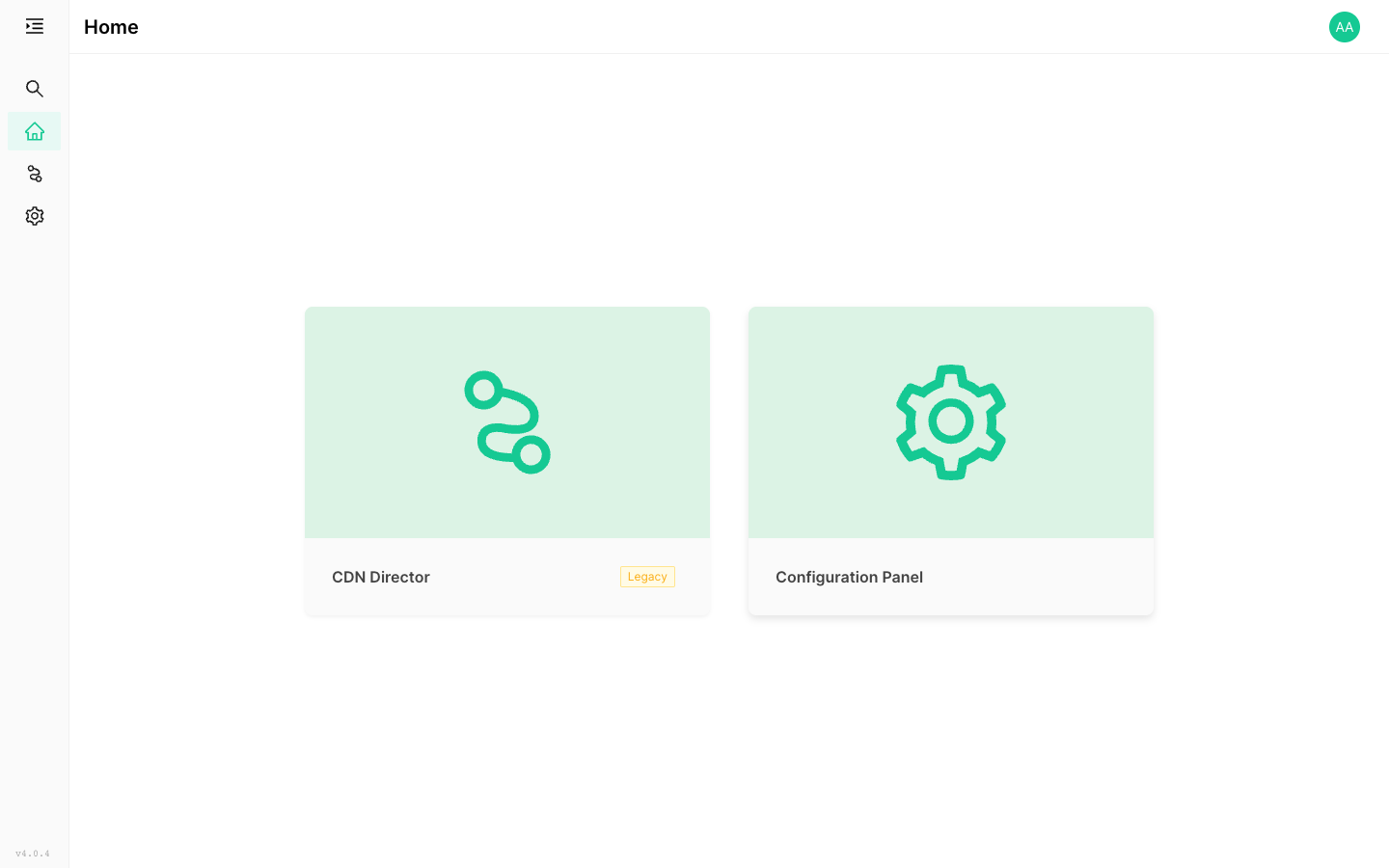
After signing in, the GUI home page appears:
Your CDN Manager cluster is installed.
What’s Next
- Secure the administrator account. The default credentials are published. Create your own administrator, then disable the default account: see Next Steps.
- Add capacity with agent machines: see Inventory.
- Change application settings, such as retention or disk sizes: see Application Settings.
- Change your configuration later: edit the files in
/etc/acd/deployand rundeployagain. That is the only way to change what is installed. See Running deploy.